Part 1
Getting started
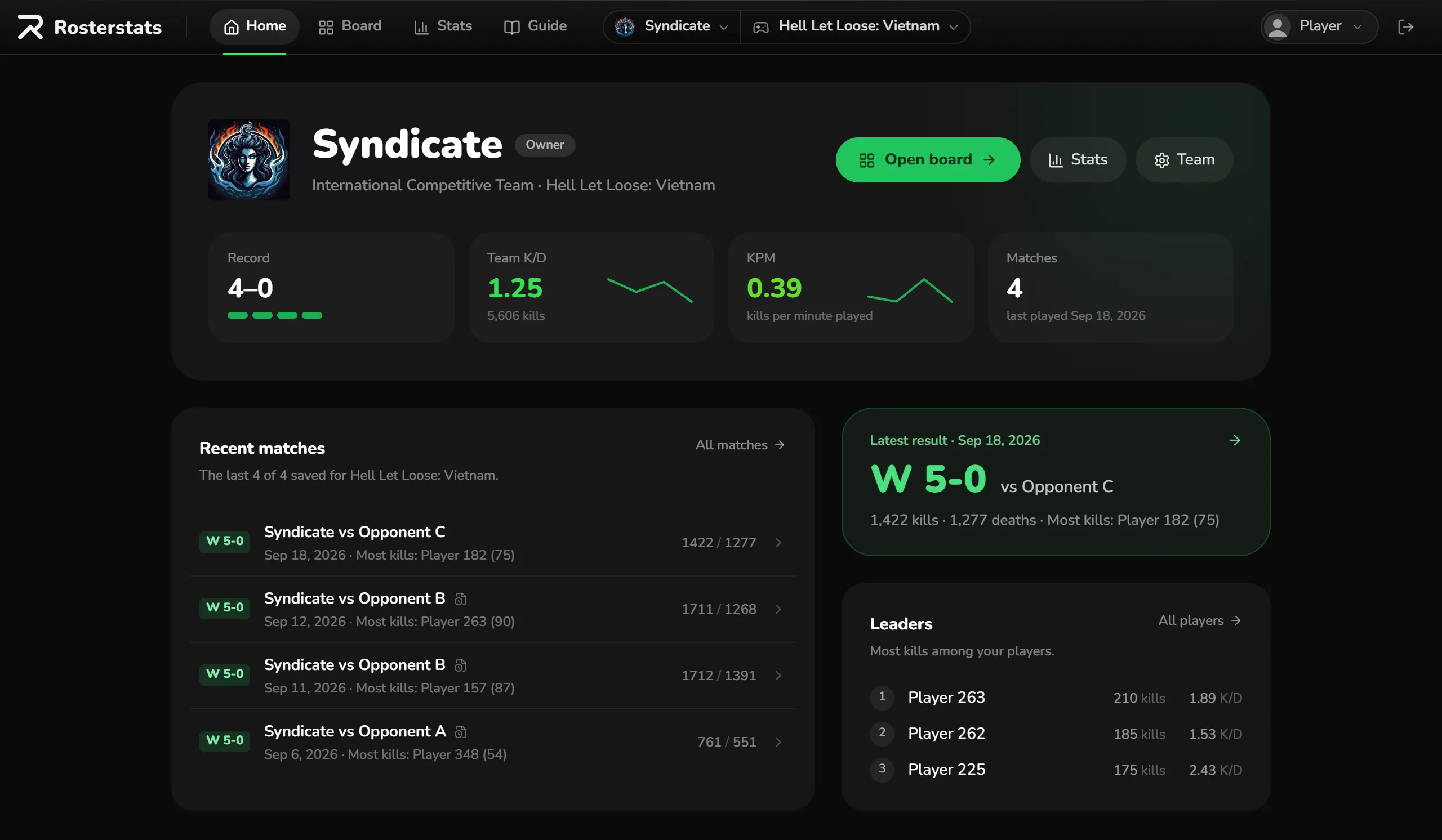
Three things before your first board: an account, a team and the right game picked in the top bar.
Use Get started on the home page, then Continue with Discord. Or create an account with your email and a password, then confirm the address from the email we send. With Discord, Rosterstats asks only for your basic profile: your Discord ID, name and picture.
Home lists teams you can ask to join, and lets you request your own. The site admin approves new teams by hand, usually within 24 hours. Rosterstats doesn't tell you when that happens yet, so come back and reload Home. One account can be on one team at a time.
The team and game pickers sit in the top bar. Boards, saved matches and stats all follow what's picked there. Until you pick a game, it's Hell Let Loose: Vietnam, or the game of your team's latest match.
Part 2
Building a board
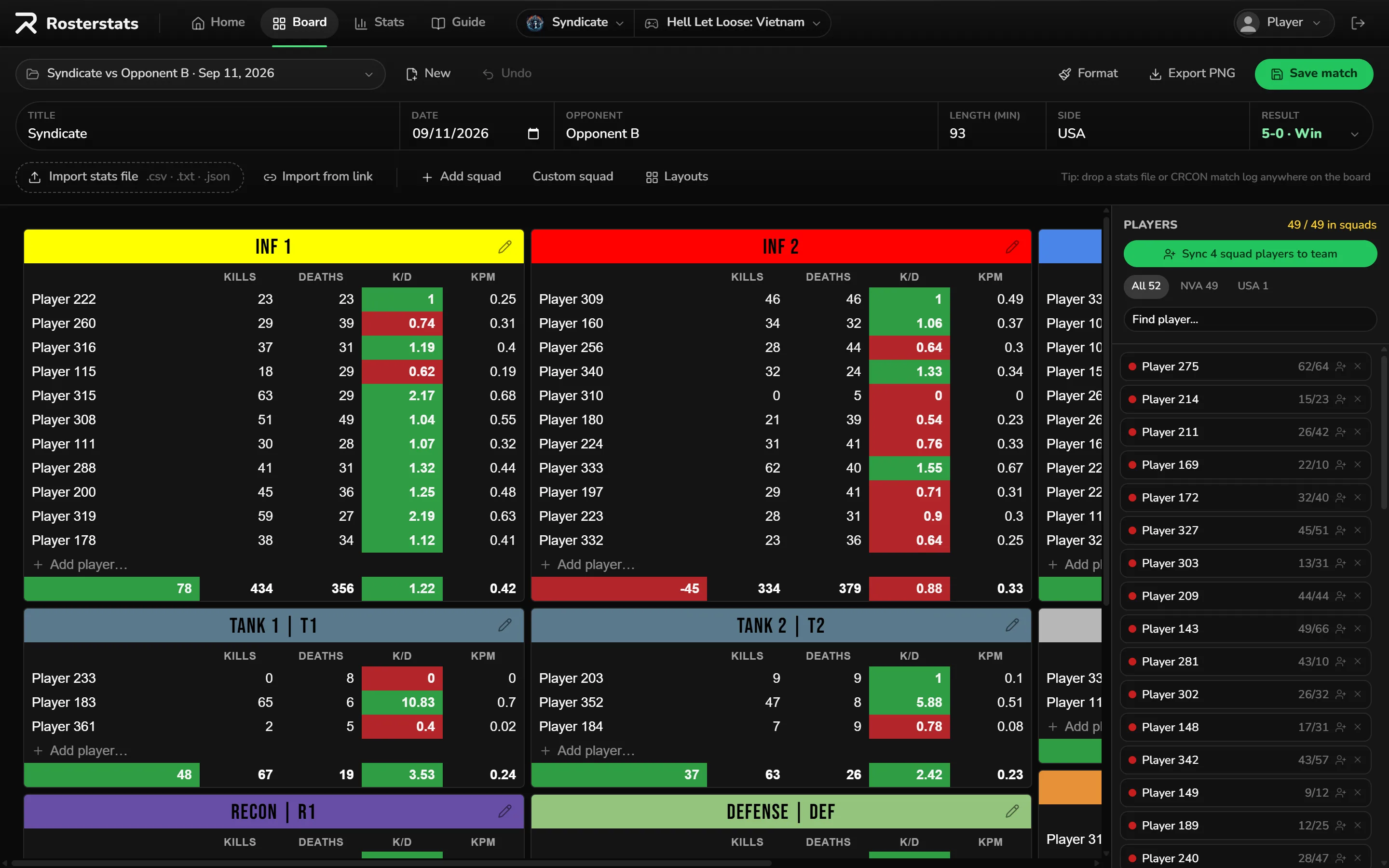
The Board is where a match becomes a squad-by-squad scoreboard you can save for stats and export as an image. It works on a computer and on a phone.

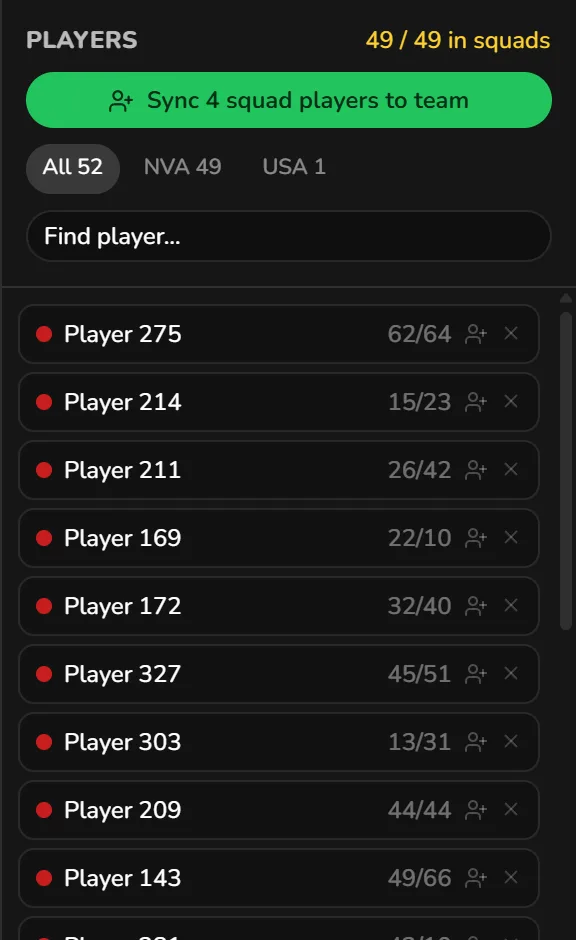
- 1Bring in the playersImport the match (see Importing a match). Everyone lands in the Players panel on the right. You can drop a file anywhere on the board.
- 2Add squadsAdd squad has seven presets: Infantry, Tank, Recon, Defense, WAMO, Mortar Crews and Commander. Custom squad takes any name. Layouts saves your squads as a layout, without their players, so you can load it for the next match.
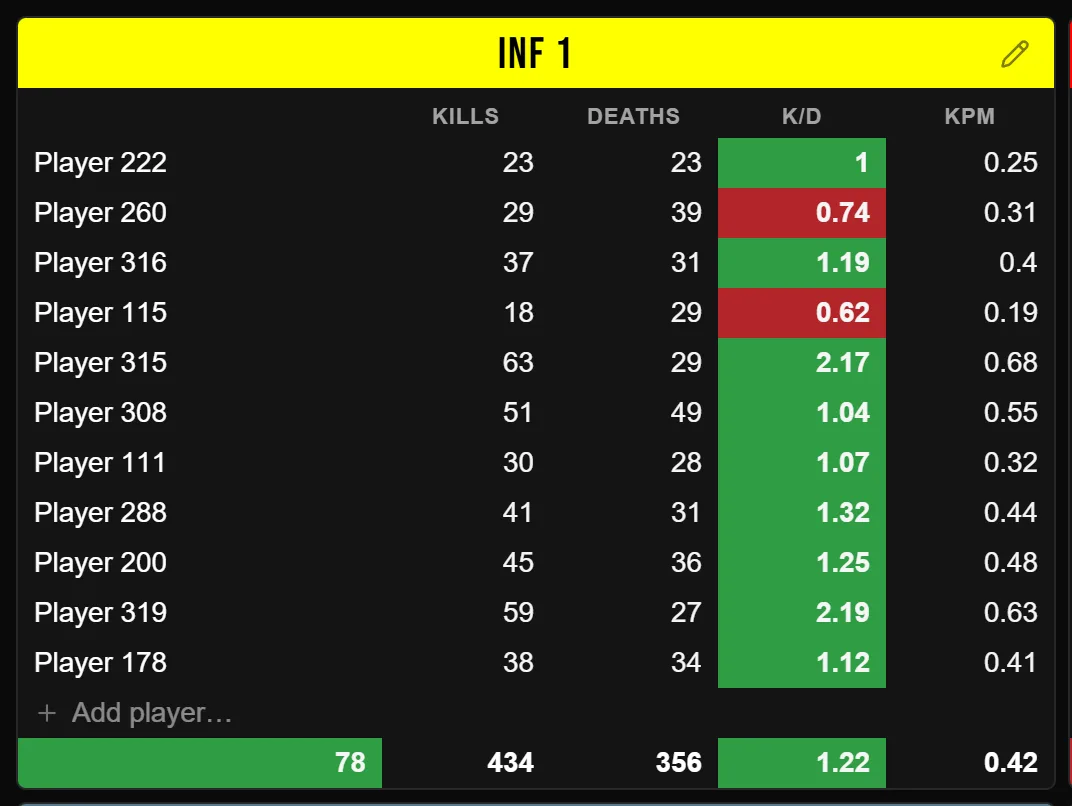
- 3Place playersDrag players from the Players panel into squads, or between squads. Or type a name in a squad's Add player field and press Enter: the player moves in from the Players panel, and the field is ready for the next name. Drag a squad by its colored header to move it. Click the squad's name to rename it, and the pencil on its header for its color, header look and KPM settings. A wrong move is one Undo (or Ctrl+Z) away.
- 4Fill in the match detailsTitle, date, opponent, length, side and the result. For Hell Let Loose games the result is a score from 5-0 to 0-5. For Wardogs it's your faction's placing, and only importing the link to a match report fills it in. Importing from a link or a match file fills in the date, length, side and result. A match log fills in the length and result when they're empty.
- 5Save and exportSave match stores it for your team's stats. Export PNG downloads the board as an image, styled the way you set it under Format (see Formatting the board).
Part 3
Formatting the board
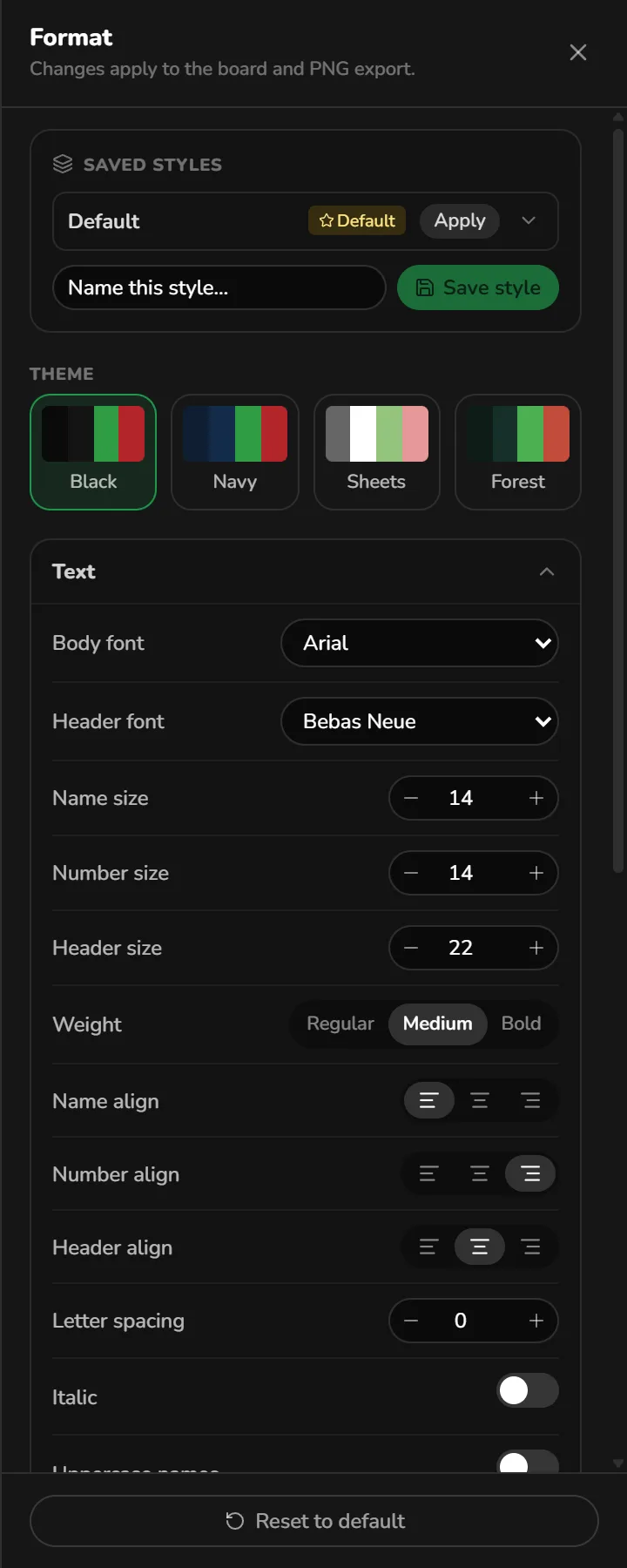
Format opens a panel on the right. Everything in it changes the board on screen and the PNG you export, so you can match your team's colors before you post it.
- Theme
- Four starting points: Black (the default), Navy, Sheets and Forest. Pick one, then fine-tune anything below.
- Text
- Body and header fonts, the size of names, numbers and squad headers, weight, alignment, letter spacing, italics and uppercase names.
- Stat colors
- How K/D and KPM are highlighted: the style, the good and bad colors, and the K/D and KPM requirements that decide which is used. Each squad can override the KPM setting from its settings menu (the pencil on its header).
- Colors
- Board background, squad background and alternate rows, player names, numbers, column titles, totals, squad headers, the Overall header, card borders and row lines. Squad headers can be solid, faded or washed. Each squad can pick its own from the pencil on its header.
- Columns & numbers
- Show or hide the Kills, Deaths, K/D and KPM columns and the totals row, and set the decimal places.
- Overall
- Where the Overall (team totals) card sits: under the board or in a column, its slot, the gap above it, alignment and a sideways nudge.
- Layout
- How many columns the board has and how wide each squad is.
- Rosterstats.com line
- A switch that puts a small Rosterstats.com under the board, on screen and in the image. It's off unless you turn it on. Each board keeps its own choice. A new board starts with the choice of the board you had open. Themes and saved styles don't change it. Reset to default turns it off.
Saved styles
Once the board looks right, name the style and press Save style. Saved styles are shared with your team. Apply puts one on this board. The arrow beside it opens the rest: Update with current style to change it, Make default so every new board starts with it, or Apply to every match to restyle every saved match of the picked game at once, with an undo right after. Saving and team-wide changes need the Create, edit and delete matches permission.
Reset to default at the bottom of the panel goes back to your team's default style, or to the starting settings if the team hasn't picked one.
Part 4
Importing a match
Three ways bring players in, and a match log adds the timeline. You can combine them: for example, a stats file plus a match log.
The end-of-match stats file exported from CRCON. It has every player's kills, deaths, points, weapons and time played. It has no in-game squads, so you place the players yourself.
Import stats file, or drop it on the board
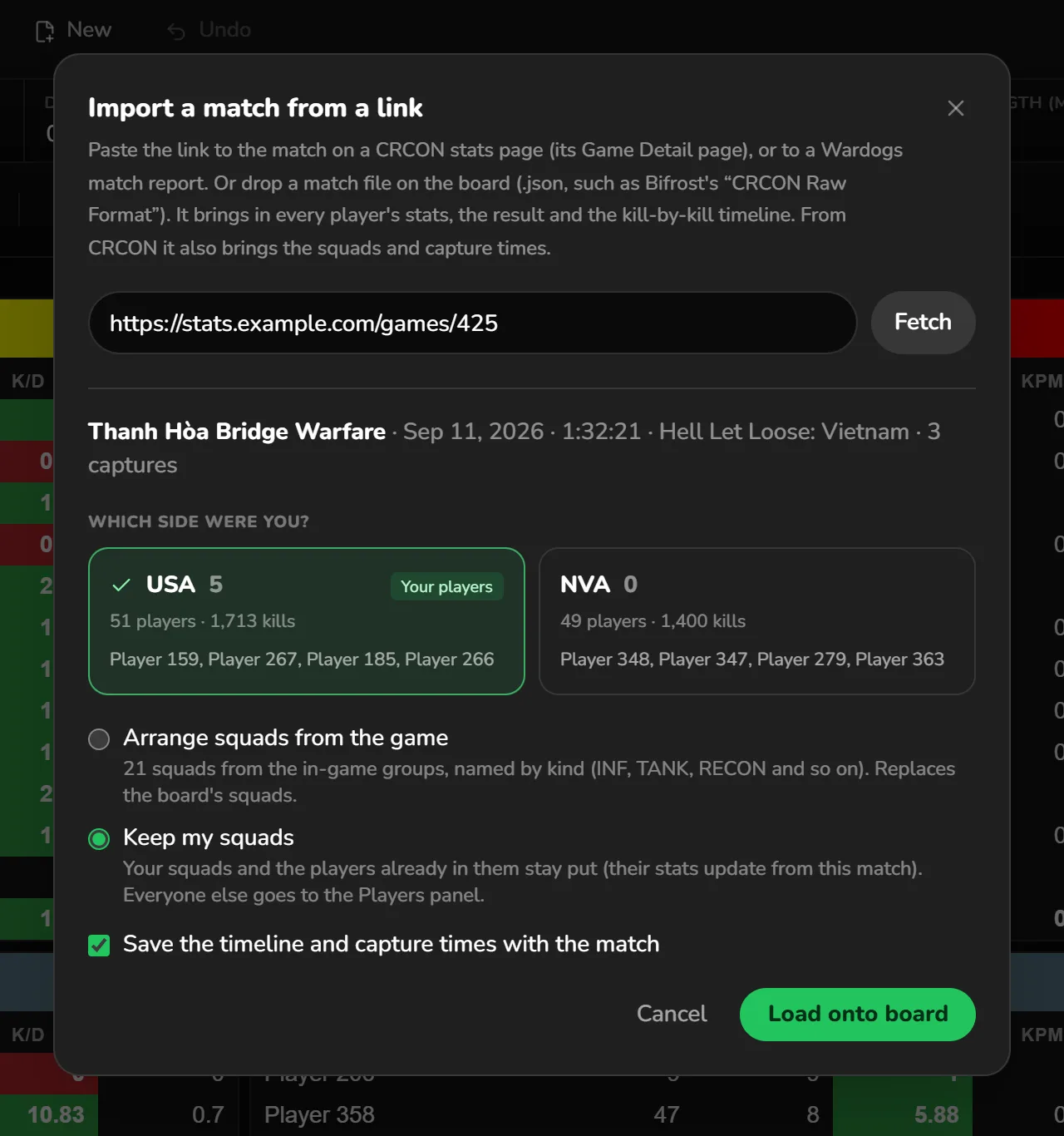
Paste the link to the match on a CRCON stats page (its Game Detail page, such as …/games/425). It brings in the players, their in-game squads, the result and the timeline, plus capture times and vehicles destroyed when the server recorded them. The link stays with the match: its page in Stats shows it, to open or copy later. The link to a Wardogs match report works the same way and stays with the match too. It brings in different things: see Where do I get my match?
Import from link
For a site Rosterstats can't read by link, such as Bifrost. Open the match's CRCON Raw Format page, save it (Ctrl+S) and drop the file on the board. It brings in the same things as a link.
Drop it on the board
The match exported from CRCON's historical logs. It adds the kill-by-kill timeline, including teamkills, and brings in no players.
Drop it on the board or the Timeline tab
Where do I get my match?
It depends on the server your clan played on.
- Your own server with CRCON
- Download the match's stats file from CRCON and drop it on the board. For the timeline, export the match from CRCON's historical logs as .txt and drop that in too. If your server publishes a CRCON stats page, a link to the match brings the players, squads, result and timeline in one import.
- Someone else's server with a CRCON stats page
- Open the match on that server's CRCON stats page (its Game Detail page) and copy the address. Paste it into Import from link.
- A Bifrost server
- Rosterstats can't read Bifrost by link. Open the match there, follow its CRCON Raw Format link and save that page (Ctrl+S) as a .json file. Drop the file on the board.
- A Wardogs server with match reports
- Open the match's report page and copy the address, such as …/m/2031-AbCdEf123. Paste it into Import from link and pick your faction. It brings in the players with their faction, kills, deaths, headshots, best streak and vehicle kills. It also brings in your faction's placing, each faction's points and the kill-by-kill timeline with the points over the match. A match report has no squads and no player IDs. The Players panel lists the players by faction, yours first, for you to place, and Stats matches them by name.
- None of these
- Make a .csv or .txt file with one player per line: name, kills, deaths, separated by commas or tabs. Drop it on the board. Players come in with no ID, so Stats matches them by name. To include IDs, start the file with a header line: Name, Kills, Deaths, Player ID. Set the match's Length on the board so KPM can be worked out.
The import window
With a link or a match file, the window shows the map, date and length it found, then asks which side you played. It guesses from the players on your team and marks that side Your players.
- Keep my squads
- Your squads and the players already in them stay put, with their stats updated from this match. Everyone else goes to the Players panel. It's the default when the board already has squads.
- Arrange squads from the game
- Builds squads from the in-game groups (INF, TANK, RECON and so on) and replaces what's on the board.
- Save the timeline and capture times with the match
- Stores the kill-by-kill timeline and capture times with the match, for the Timeline tab. A page with no capture times says so, and the option then saves the timeline alone.
A Wardogs match report has no in-game squads and no capture times. The window asks which faction you were. It guesses by name, from the players on your team and those already in your squads. It leaves out the two squad choices: players already in your squads stay put with their stats updated, and everyone else goes to the Players panel. The last option then saves the timeline alone.
Part 5
Team stats
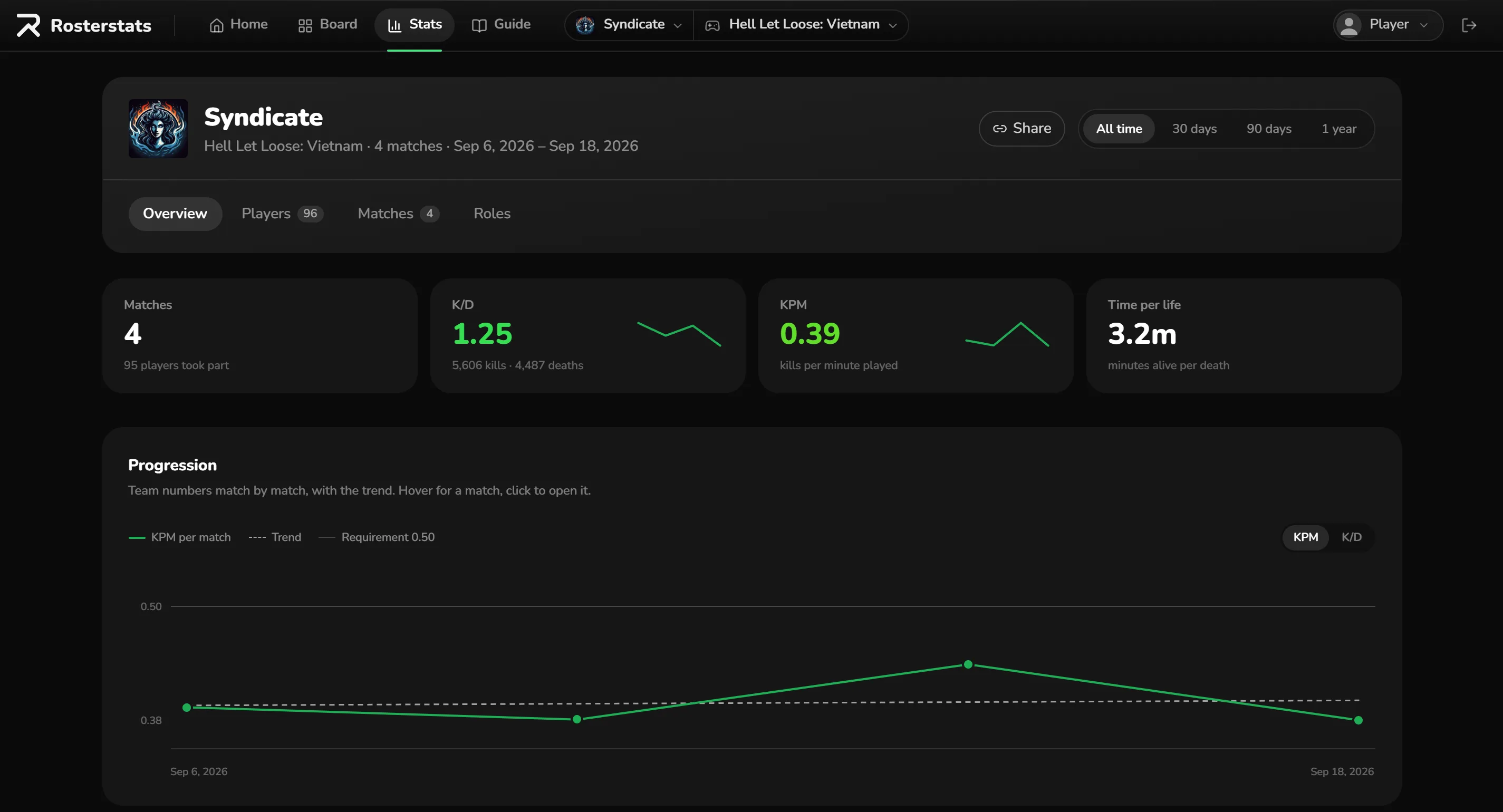
Stats covers every saved match for the picked game, over all time or the last 30 days, 90 days or year.
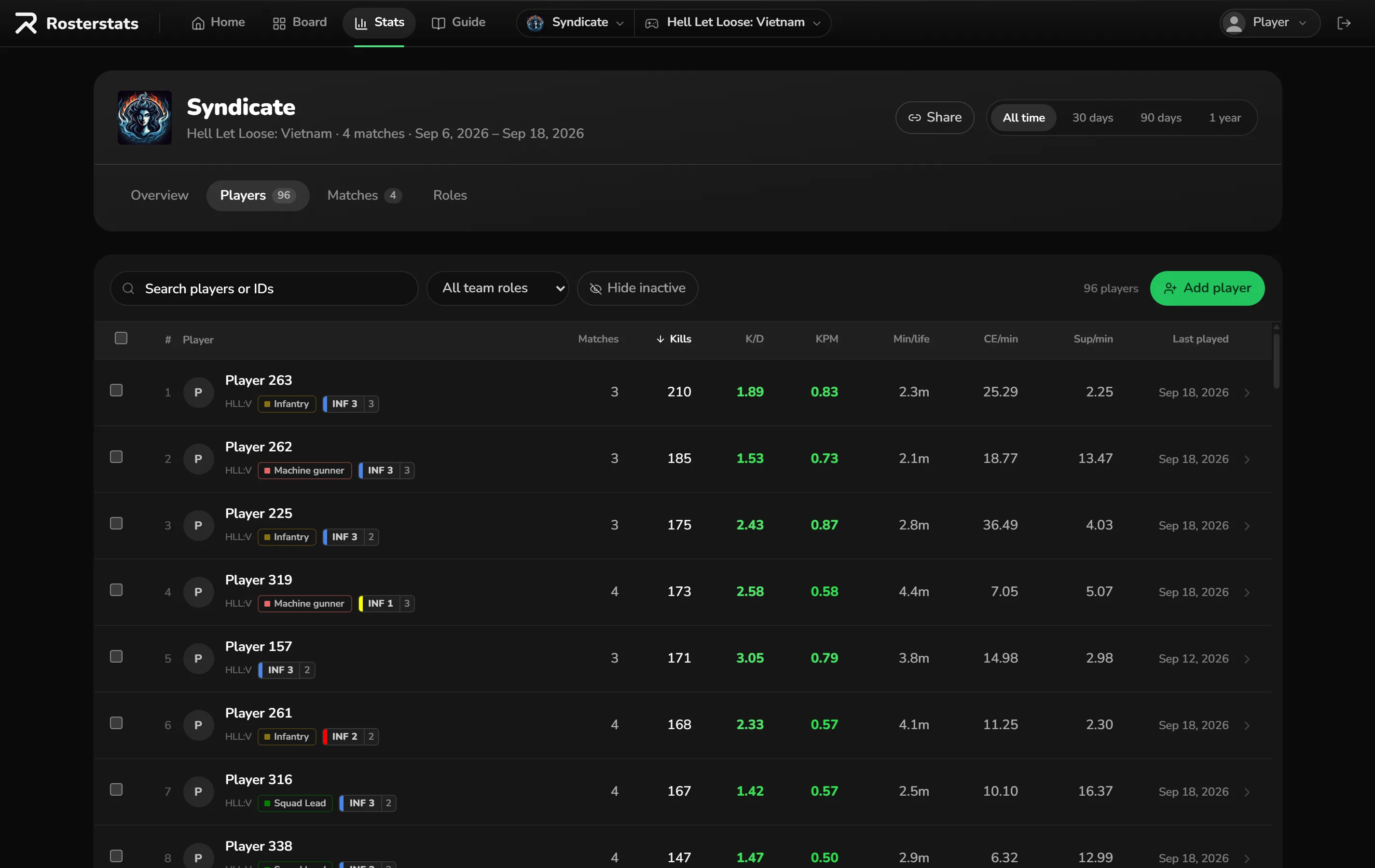
Each of your players with their totals and team roles. The colored tag is the squad they're placed in most. Select several to give or remove team roles in bulk.
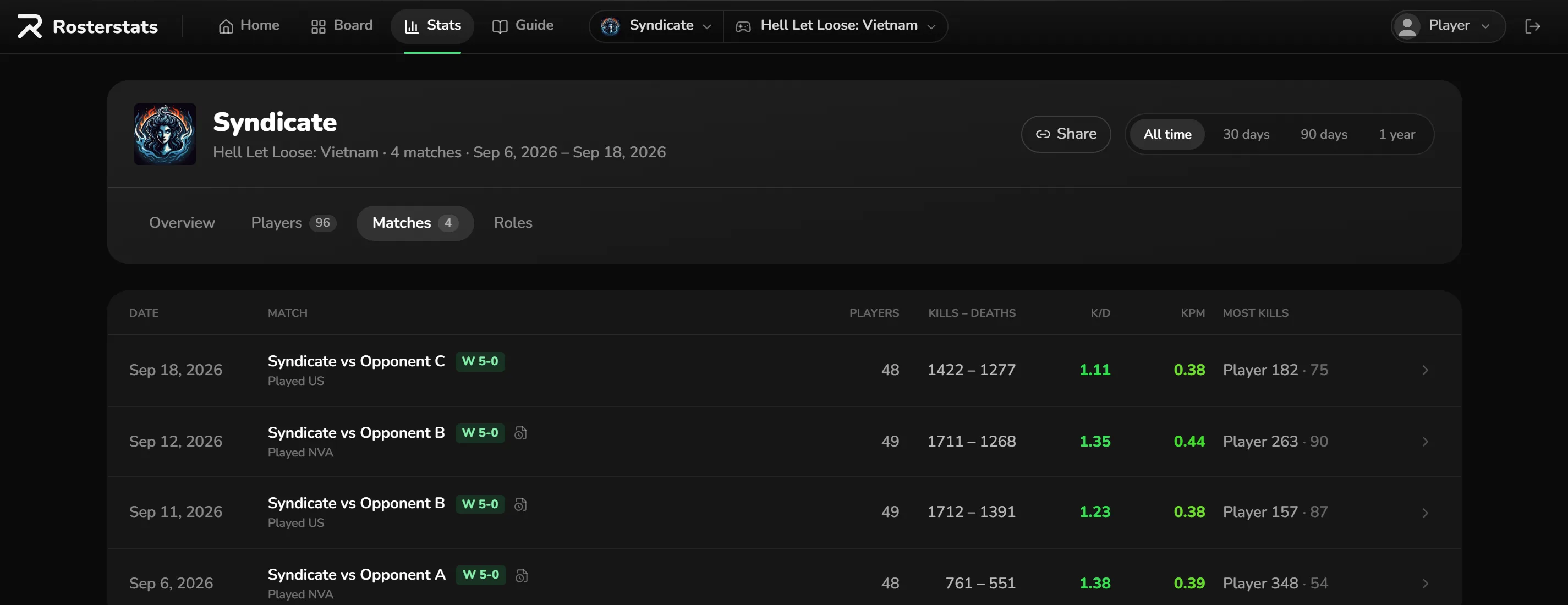
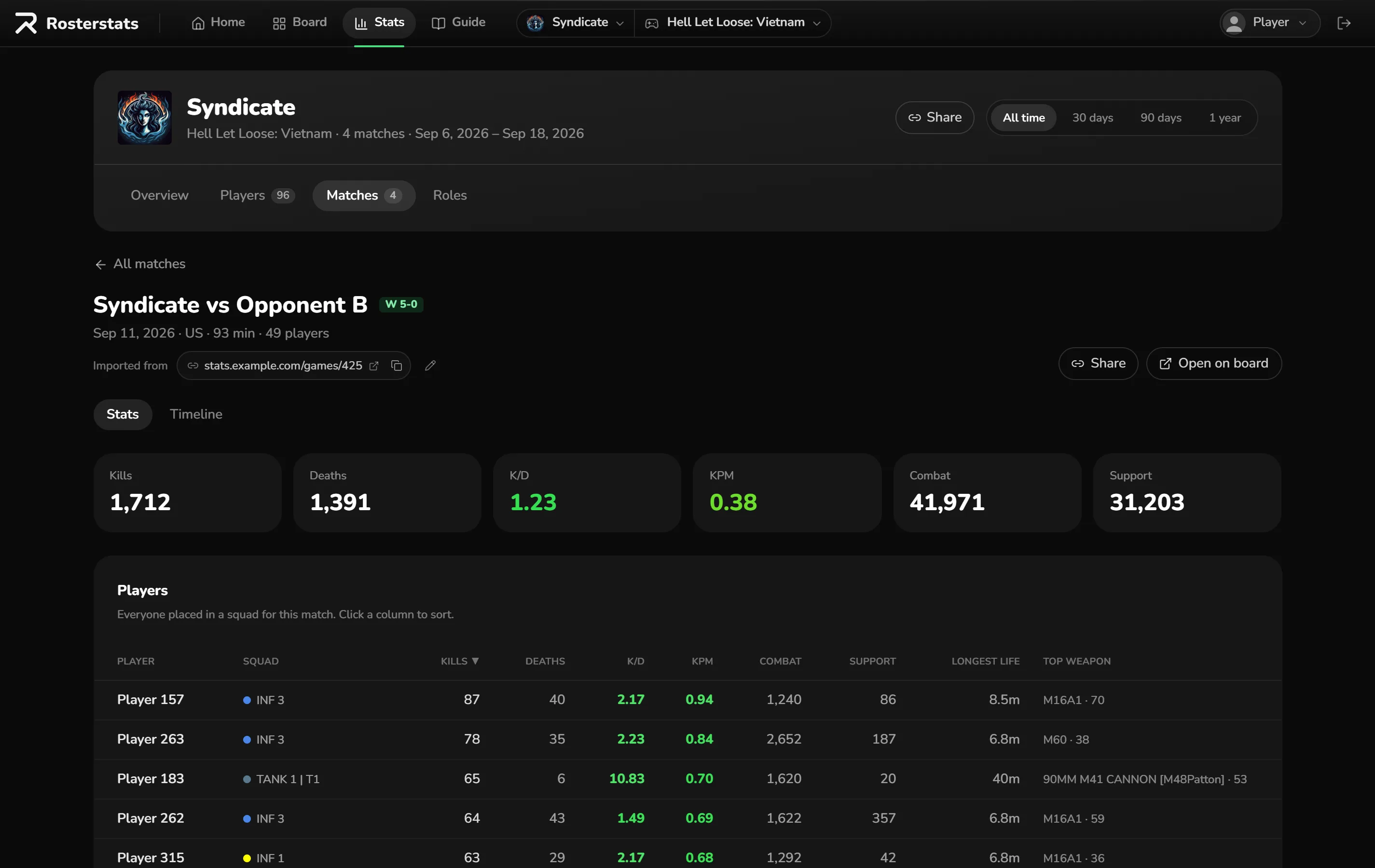
Every saved match with its result and totals. Open one for its players, kill types and squads, plus the Timeline.
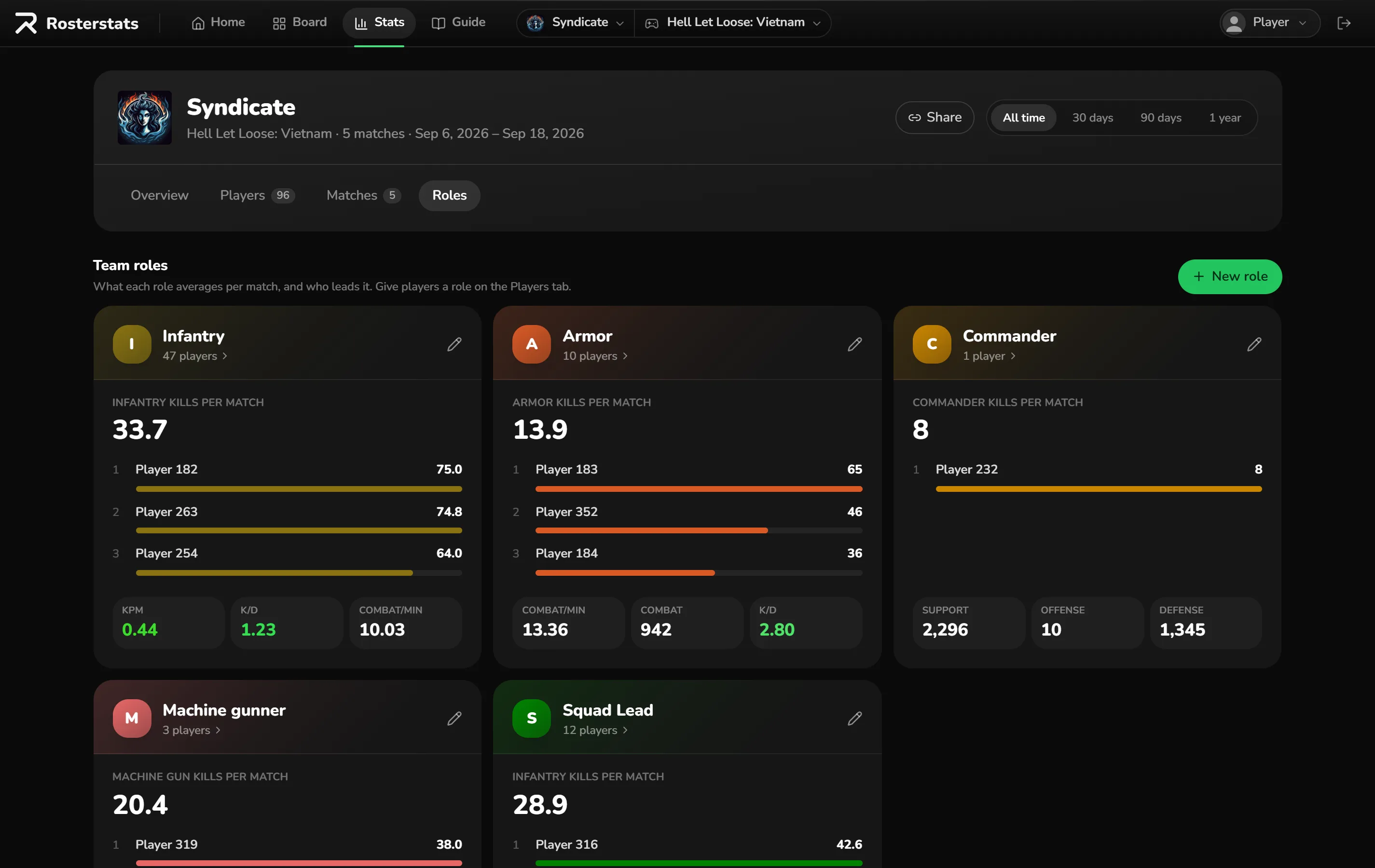
Your team roles: how the players in each one do on the stats you pick, and who leads them. New role and the pencil on a card open the role's name, color and up to four stats. The first stat ranks its top players.
A player's page
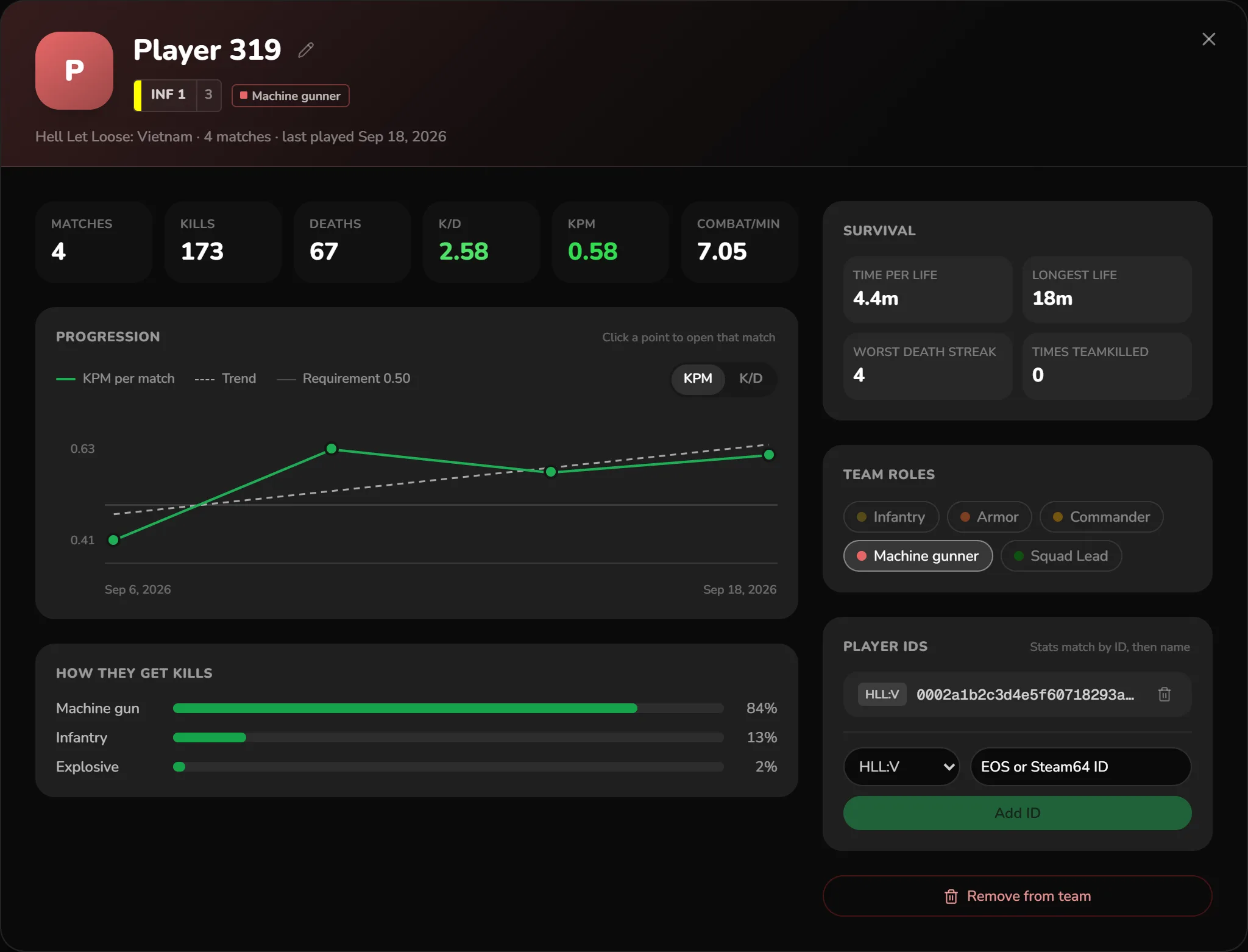
Click any player for the full picture: totals, a progression chart (click a point to open that match), how they get kills, survival numbers, team roles and their player IDs.
This is also where you add a Steam64 or EOS ID, so their stats keep counting if they change their name.
Matches imported from a CRCON stats page or a match file also count the vehicles each player destroyed. The number is in the match's player table and, for anyone who has destroyed one, on their own page. You can also pick it as a stat for a team role. A tank's whole crew gets the credit for its kills.
A match imported from a Wardogs match report has each player's headshots, best streak and vehicle kills. Vehicle kills are kills made with a vehicle's weapons, a different count from vehicles destroyed. The numbers are in the match's player table and on the player's own page.
Part 6
Match timelines
A saved match's Timeline tab shows the match kill by kill. It needs a match log, a match file or a link to the match on a CRCON stats page, because the stats file has no kill times. A Wardogs match gets its timeline from the link to its match report.
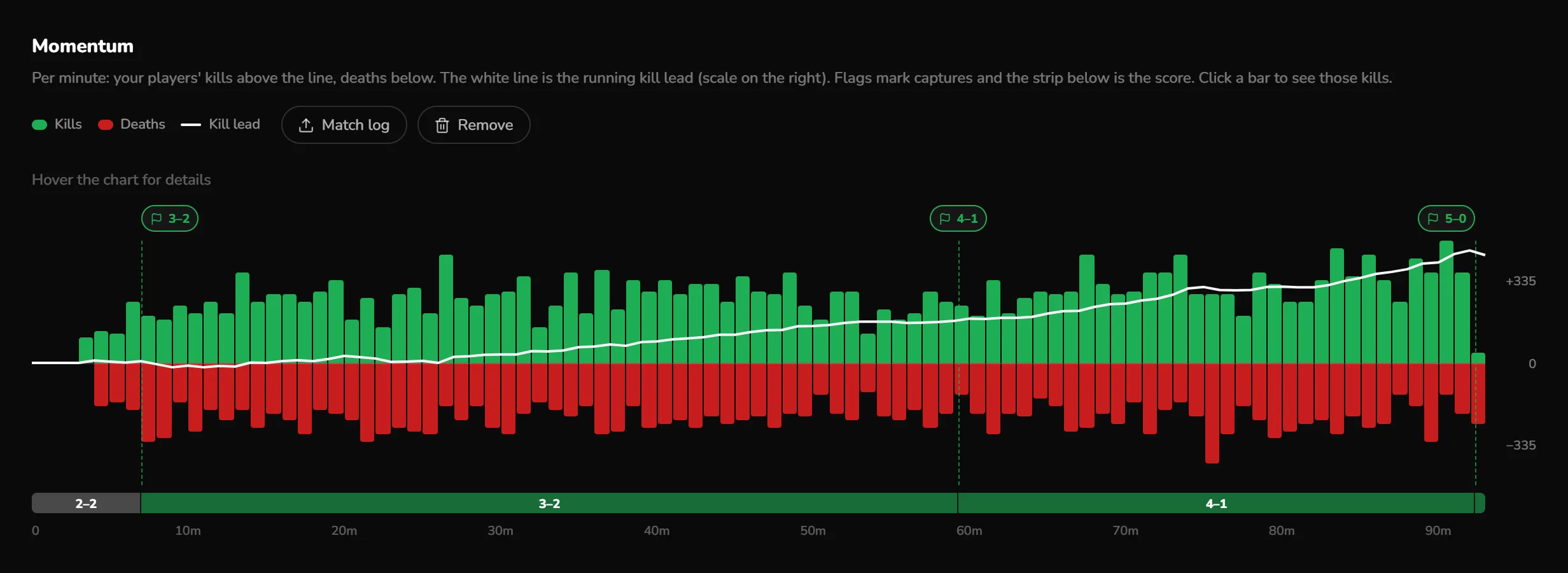
- Momentum
- Your players' kills per minute above the line, deaths below. Click a bar to see those kills.
- Captures
- Flags mark when points changed hands, with the score strip underneath. They come from a match file or a link to a CRCON stats page, when that server recorded them. A timeline from a match log alone asks for that link.
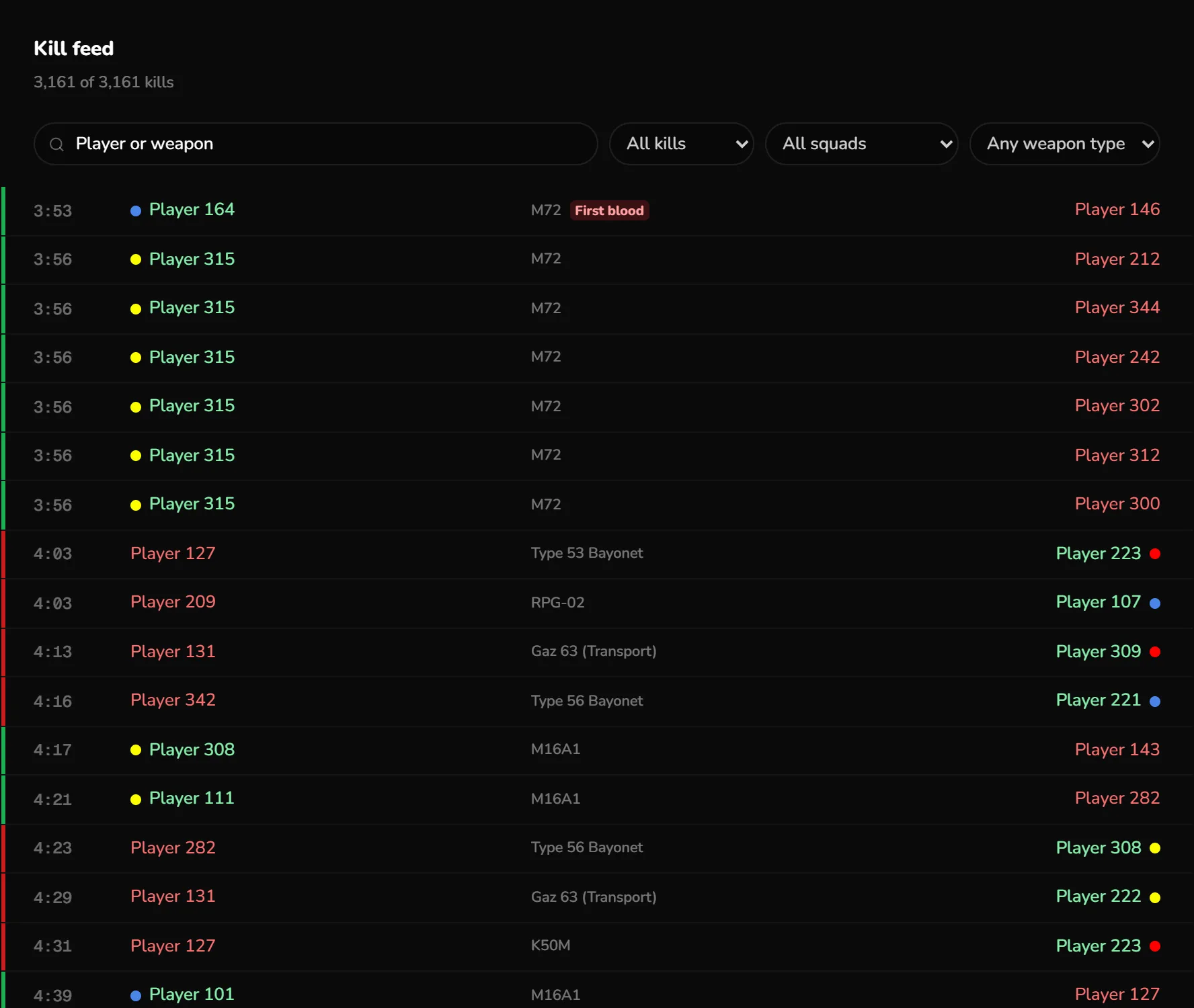
- Kill feed
- Every kill with its time and weapon. Filter by player, squad, weapon type, your kills or deaths, teamkills or tank kills.
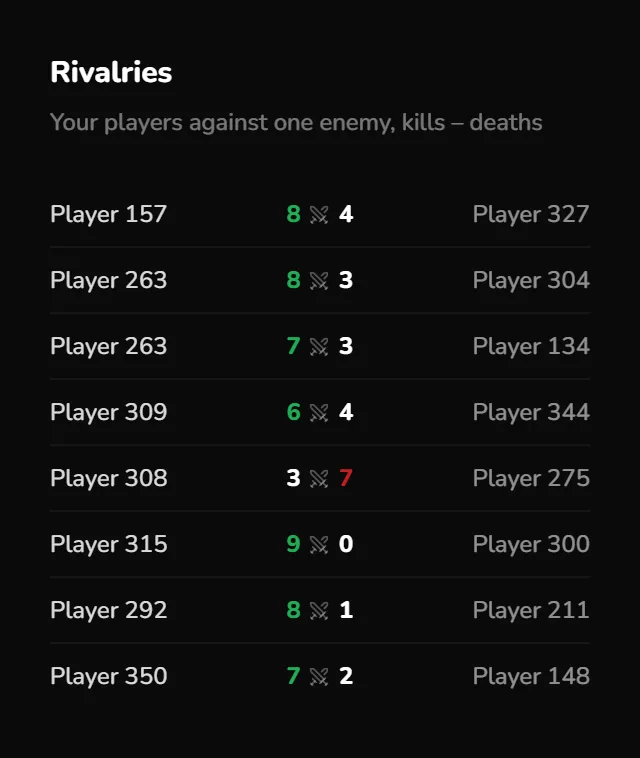
- Highlights
- Kill streaks, rivalries between your players and one enemy, and tank kills.
- Factions
- For a match from a Wardogs match report. Each faction's points, kills and deaths, counting every player in the faction, and a chart of the factions' points over the match.
Timeline totals count the players you placed in squads, the same as the Stats tab.
Part 7
Managing your team
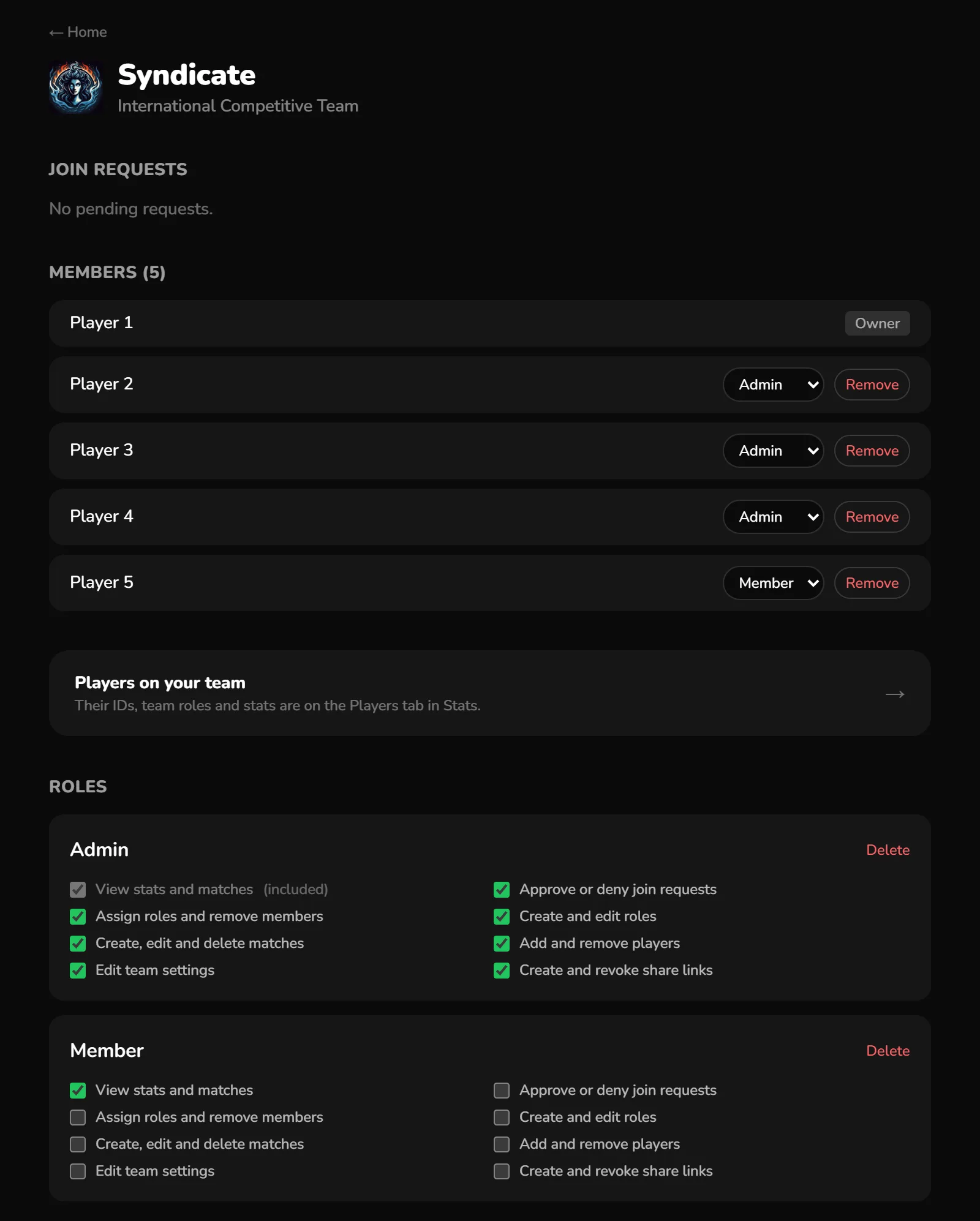
Your team's page holds its members, join requests, the permissions each role grants and the team's settings.
- Players on your team
- Your team's own players. Add the first ones from a board: place them in squads, then use Sync squad players to team. After that you can also add players on the Players tab in Stats. Until a team has any, Stats lists everyone placed in squads, and player pages, IDs and team roles aren't available.
- Player IDs
- Each player's Steam64 or EOS ID per game. Stats match players by ID first, so they keep counting when someone changes their name. A player without an ID is matched by name only.
- Team roles
- Your own labels for players, such as Squad Lead or Tank Commander, with colors. Create them on the Roles tab in Stats, and give them to players on the Players tab.
- Member permissions
- Give members roles that allow: viewing stats and matches, approving or denying join requests, managing members, managing roles, creating and editing matches, adding and removing players, editing team settings and sharing links. A member with no role, or a role without viewing, sees only Home and the team page. Managing matches, players or share links includes viewing. The owner can do everything. New teams start with two roles: Admin, with every permission, and Member, which can view stats and matches.
- Leave this team off the list on Home
- A checkbox under Settings on the team page. The team then stays off Find a team on Home, so other accounts don't see its name, description or logo there. Someone who has already asked to join still sees it, and so does the site admin.
- Join link
- Also under Settings. Anyone who opens the link and signs in can ask to join, whether or not the team is on the list. The team still approves or denies each request.
- Transfer ownership
- The owner can hand the team to another member from the bottom of the team page. The new owner is the only one who can delete the team. The old owner stays on it with every permission.
Part 8
Tips & questions
›A player's stats are missing or split in two.
They probably changed their in-game name and don't have an ID yet. Open them on the Players tab and add their Steam64 or EOS ID for the game. A Wardogs match report has no player IDs, so its players are matched by name only.
›The import picked the wrong side.
It guesses from the players on your team. Pick the right side in the import window, or set the match's Side on the board. A Wardogs result is your faction's placing, so for a Wardogs match import the link again and pick your faction.
›The date is a day off from the CRCON stats page.
CRCON stats pages often show dates in UTC. Rosterstats uses your own time zone, so evening matches keep the day you played.
›Why don't my numbers match the whole server's?
Team stats only count players you placed in squads on the board. Opponents and anyone left in the Players panel aren't included. That goes for your own players too: one left in the Players panel isn't counted for that match.
›Is there a helicopter squad type?
Not right now. Add squad has no helicopter preset, and Stats has no helicopter squad type. A squad you make with Custom squad, such as HELI 1, counts as Infantry in Stats.
›Can I be on more than one team?
No. One account can be on one team at a time, and that includes a team you own or have requested. So you can't request another while you're on one or waiting for an answer. To switch teams, open your team's page from Team on Home and press Leave team at the bottom. If you own the team, hand it to another member first with Transfer ownership on the same page, or delete it.
›Can people outside the team see our stats?
Not unless you share a link. Share on Stats (for the picked game's stats) or on a match creates a share link. It's read-only and works without signing in. Revoke it from the same place whenever you like. The owner can do this. Other members need a role with the Create and revoke share links permission. The site admin can also open any team's data to give support.
›How do I delete my account?
Click your name in the top bar and choose Delete account. It removes your profile, sessions and team memberships immediately. If you own a team, transfer it to another member or delete it first, from its Team page.
›Something's broken or I have an idea.
Email support@rosterstats.com.
Need a hand?
Questions, bugs or feature requests: we'll get back to you.